
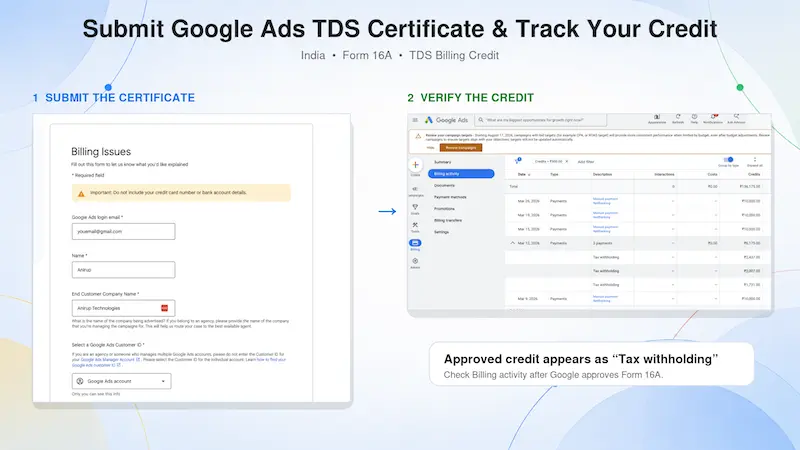
For businesses advertising through Google Ads in India, managing TDS is an important part of billing and tax compliance.
Google currently states that the TDS rate for advertising payments made to Google India Private Limited is 2% of the advertising amount, excluding GST. However, the applicable rate can change, so advertisers should confirm it with their accountant or tax consultant before making a deduction.
After depositing the TDS with the government and filing the quarterly return, you must submit the relevant TDS certificate to Google. Once Google verifies and approves the certificate, the corresponding amount is added to your Google Ads billing account as a credit.
Missing a submission deadline, using the wrong Google Ads account details, or uploading an incorrect certificate can delay or prevent the credit from being applied.
How Does TDS Credit Work in Google Ads?
The process generally involves the following steps:
- Calculate the applicable TDS on the advertising amount before GST.
- Deposit the deducted amount with the Income Tax Department.
- File the applicable quarterly TDS return.
- Download the digitally generated Form 16A from the TRACES portal.
- Submit the signed Form 16A to Google.
- Track the approved credit in your Google Ads billing activity.
For manual or automatic-payment accounts, advertisers normally pay Google through the available payment method and subsequently receive the approved TDS amount as an account credit.
Monthly-invoicing accounts should follow the payment instructions shown on their Google invoice and identify the invoice to which the withholding certificate relates.
TDS Calculation Example
Suppose your Google Ads charges are:
- Advertising charges before GST: ₹1,00,000
- GST at 18%: ₹18,000
- Total invoice value: ₹1,18,000
At a TDS rate of 2%, the calculation would normally be:
₹1,00,000 × 2% = ₹2,000
TDS is calculated on the advertising charges excluding GST—not on the total amount of ₹1,18,000. Google confirms the current 2% rate and calculation basis in its official India tax guidance.
Always have your accountant confirm the calculation for your particular business and payment arrangement.
What You Need Before Submitting the Certificate
Keep the following information ready:
- Digitally signed Form 16A or a clear PDF scan of the signed certificate
- Individual Google Ads Customer ID
- Google Payments Profile ID
- Advertiser’s legal business name
- Relevant financial year and quarter
- TDS amount being claimed
- Google invoice number, particularly for monthly-invoicing accounts
- Email address associated with the Google Ads billing profile
Do not submit only your Google Ads Manager Account or MCC ID. Use the Customer ID of the individual advertiser account to which the credit should be applied.
Option 1: Submit TDS for Automatic or Manual-Payment Accounts
Advertisers using automatic payments or manual prepayments can submit their TDS certificate through Google’s official billing support form.
Submission Steps
- Open the Google Ads Billing Support Form.
- Sign in using an email address that has access to the relevant Google Ads account.
- Select the individual Google Ads account for which you want to claim the TDS credit.
- Enter the requested billing information, which may include:
- Google Ads Customer ID
- Payments Profile ID
- Account or company name
- Contact email address
- Financial year and quarter
- TDS amount
- Select the most relevant billing or refund-related option. The exact wording may change as Google updates the form.
- In the issue-description field, clearly explain that you are submitting a TDS certificate.
- Attach the digitally signed Form 16A PDF or a clear scan of the signed certificate.
- Submit the request and save the case ID or confirmation email for future follow-up.
Suggested Message for the Support Form
I am submitting the digitally signed TDS certificate, Form 16A, for Quarter [Q1/Q2/Q3/Q4] of Financial Year [YYYY–YY]. Please verify the attached certificate and apply the corresponding TDS credit to Google Ads Customer ID [XXX-XXX-XXXX] under Payments Profile ID [XXXXXXXXXXXX].
The fields and assistance options displayed in the form may vary depending on your account and payment settings.
Option 2: Submit TDS for Monthly-Invoicing Accounts
Google allows advertisers using monthly invoicing to email a digital copy of the signed TDS certificate to:
Attach the digitally signed Form 16A or a clear PDF scan. Include the following information in the email:
- Advertiser’s legal company name
- Google Ads Customer ID
- Payments Profile ID
- Google invoice number
- Financial year and quarter
- TDS amount
- Contact details of the billing person
Google’s monthly-invoicing guidance also recommends specifying the invoice to which the withholding document relates. Review the official monthly-invoicing payment instructions before sending your documents.
Suggested Email Subject
TDS Certificate Submission – [Company Name] – Customer ID [XXX-XXX-XXXX] – FY [YYYY–YY], Q[X]
Suggested Email Template
Dear Google Collections Team,
Please find attached the digitally signed Form 16A for the following Google Ads account:
Company name: [Legal Company Name]
Google Ads Customer ID: [XXX-XXX-XXXX]
Payments Profile ID: [XXXXXXXXXXXX]
Google invoice number: [Invoice Number]
Financial year: [YYYY–YY]
Quarter: [Q1/Q2/Q3/Q4]
TDS amount: ₹[Amount]
Kindly verify the attached certificate and apply the corresponding TDS credit to the relevant billing account.
Regards,
[Name]
[Designation]
[Company]
[Phone Number]
Where to Find Your Google Payments Profile ID
Your Payments Profile ID is different from your Google Ads Customer ID.
To locate it:
- Sign in to Google Ads.
- Open Billing.
- Select Settings.
- Find the Payments profile section.
- Copy the Payments Profile ID displayed there.
You can also find it by signing in to the Google Payments Center.
How to Track Your TDS Credit in Google Ads
After Google approves the certificate, the credit should appear in the billing activity of the relevant advertiser account.
To check it:
- Sign in to the individual Google Ads account.
- Open Billing.
- Select Summary or Transactions.
- Adjust the date range to include the date on which Google approved the request.
- Review the credits and adjustments shown in the transaction history.
- Match the amount with the TDS certificate and Google’s approval email.
The entry may appear as a tax-withholding credit, TDS-related credit, or billing adjustment. Labels can vary depending on the account and payment configuration, so reconcile the amount and processing date instead of relying only on the description.
For manual-payment accounts, the amount may increase the available account balance. For automatic-payment accounts, it may be applied against subsequent advertising charges. Monthly-invoicing accounts should check the statement of account or invoice allocation.
Google’s TDS Certificate Submission Deadlines
Google requires TDS certificates to be submitted quarterly.
| Quarter ending | Google’s submission deadline |
|---|---|
| June 30 | August 15 |
| September 30 | November 15 |
| December 31 | February 15 |
| March 31 | June 15 |
Google also states that certificates relating to the previous financial year will not be accepted after the final June 15 deadline. These timelines are listed in Google’s official tax guidance for India.
Because tax-filing deadlines and government rules can change, confirm the current dates with your tax advisor.
Google India Details for Form 16A
Ensure that the details entered in your TDS return and Form 16A match Google India’s legal information.
Legal name: Google India Private Limited
PAN: AACCG0527D
Registered address:
Google India Pvt. Ltd.
No. 3, RMZ Infinity, Tower E
Old Madras Road, 4th and 5th Floor
Bangalore – 560016
Even a small mismatch in the PAN, company name, address, financial year, or TDS amount can delay verification.
Common Reasons for Delayed or Rejected TDS Credit
Your request may be delayed when:
- The certificate is submitted after the applicable deadline.
- The MCC ID is provided instead of the individual Customer ID.
- The Payments Profile ID is incorrect.
- Google India’s PAN or legal details do not match.
- The uploaded certificate is unsigned or unclear.
- The financial year or quarter is not mentioned.
- The TDS amount does not match the certificate.
- The monthly invoice number is missing.
- The request is submitted from an email without billing access.
- The same certificate is submitted for multiple accounts without a clear allocation.
What to Do If the Credit Does Not Appear
If the credit has not appeared after Google has had reasonable time to process the certificate:
- Check your email for a response requesting more information.
- Review the certificate for PAN, quarter, amount and company-name mismatches.
- Confirm that you are checking the correct individual Google Ads account.
- Search the full processing period under Billing → Transactions.
- Reply to the existing support email instead of opening multiple duplicate cases.
- Include the original case ID, certificate and account details in your follow-up.
- For monthly invoicing, contact the collections address shown on your invoice or email
collections@google.com.
Final TDS Submission Checklist
Before submitting Form 16A, confirm that:
- The TDS return has been filed.
- Form 16A has been generated through TRACES.
- The certificate is digitally signed or properly scanned.
- Google India’s PAN and legal details are correct.
- TDS has been calculated on the applicable amount excluding GST.
- The individual Google Ads Customer ID is included.
- The Payments Profile ID is correct.
- The financial year and quarter are clearly mentioned.
- The invoice number is included where applicable.
- The certificate is submitted before Google’s deadline.
- The support case ID or email acknowledgement has been saved.
Conclusion
Submitting a TDS certificate to Google Ads is straightforward when your documents and account details are accurate. The most common problems arise from missed deadlines, incorrect account IDs, mismatched legal details and incomplete certificates.
Create a quarterly process for your finance team: file the return, download Form 16A, submit it to Google, record the support reference and verify the credit in your Google Ads billing activity. This simple checklist can prevent valid TDS credits from being missed.
Disclaimer: This article is for general informational purposes and does not constitute tax or legal advice. TDS rates, procedures and deadlines may change. Consult a qualified tax professional for advice specific to your business.

Anil Singh is the Founder of Anirup Technologies LLP and a performance marketing strategist with over a decade of hands-on experience in Google Ads, PPC management, SEO and lead generation. He helps businesses build search-focused marketing systems that improve visibility, attract qualified leads and support measurable growth.
With strong expertise in Google Ads, Meta Ads, conversion tracking, landing pages and WordPress-based SEO, Anil focuses on practical strategies that connect marketing spend with real business outcomes. His work is especially focused on helping businesses use paid search and performance marketing with better structure, clearer reporting and stronger ROI accountability.